


Upgrading or replacing a computer’s processor is usually a straightforward process, but some users are surprised to encounter a cryptic message during boot: “New CPU installed. fTPM/PSP NV corrupted or fTPM/PSP NV structure changed.” This warning can prevent Windows from loading normally and may cause concern about data loss or hardware damage. While the message looks alarming, it typically relates to firmware-based security features tied to the previous CPU rather than a catastrophic failure.
TLDR: The “New CPU Installed – fTPM/PSP NV Corrupted” message appears when a motherboard detects a processor change and finds that its firmware TPM data no longer matches. This is common after upgrading or reseating a CPU. In most cases, resetting the fTPM resolves the issue, but users must ensure they do not lose encrypted data protected by BitLocker. Backing up recovery keys and understanding BIOS settings are essential before proceeding.
Understanding fTPM and PSP NV
To fix the issue properly, it helps to understand the technologies involved. fTPM stands for Firmware Trusted Platform Module. Unlike a discrete TPM chip installed on the motherboard, fTPM is implemented in firmware and relies on the CPU’s secure environment.
On AMD systems in particular, the PSP (Platform Security Processor) handles security tasks. The NV in the error refers to non-volatile memory, where cryptographic keys and configuration data are stored. When a CPU is replaced, this secure storage can become mismatched or “corrupted” in the eyes of the firmware because the cryptographic identity of the processor has changed.

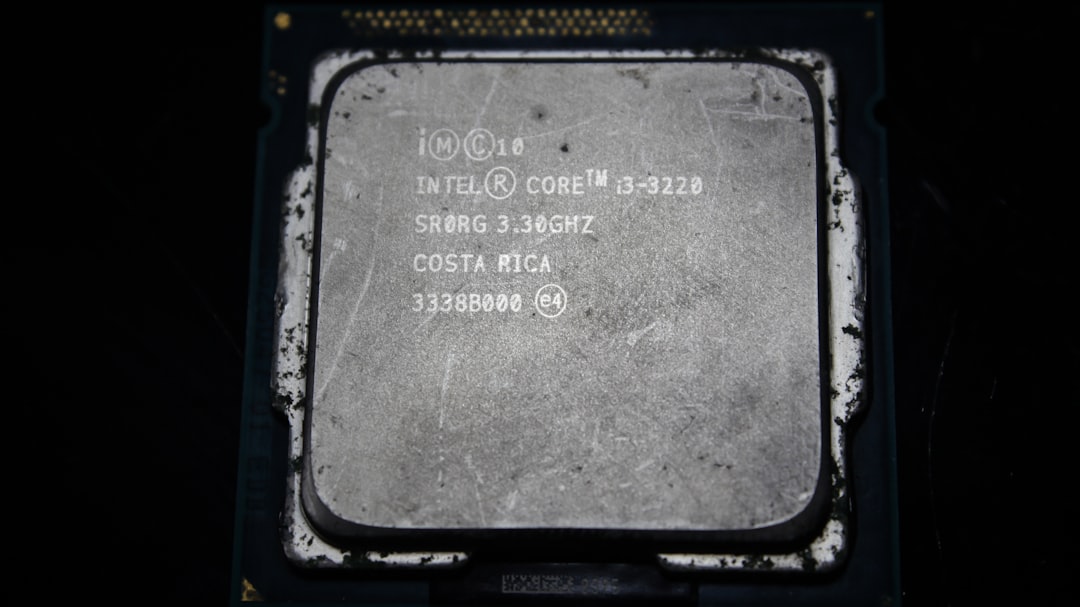
This is why the system displays a warning at boot. The motherboard firmware detects that the new CPU cannot validate the existing fTPM data saved in NV memory. As a protective measure, it asks the user whether to reset the fTPM.
Why the Error Appears After Installing a New CPU
There are several common scenarios that trigger the message:
- Upgrading to a new processor (for example, moving from Ryzen 5 to Ryzen 7).
- Replacing a faulty CPU.
- Reseating the same CPU after cleaning or troubleshooting.
- BIOS updates that alter firmware TPM behavior.
Because fTPM ties encryption keys and trusted measurements to the processor, changing the CPU breaks that chain of trust. The system does not automatically know whether this was a legitimate upgrade or an unauthorized hardware change, so it prompts for confirmation.
Is This a Serious Problem?
In most cases, the message is not a sign of hardware failure. However, it can become serious if the system drive is encrypted with BitLocker or another disk encryption tool that depends on the TPM.
If BitLocker is enabled and you reset the fTPM without backing up your recovery key, you may lock yourself out of your data. The encryption key stored in the previous TPM structure will be lost when the NV data is cleared.
Therefore, the most important step before proceeding is verifying whether drive encryption is active.
How to Fix “fTPM/PSP NV Corrupted”
Step 1: Check for BitLocker
In Windows, users can check BitLocker status by:
- Opening the Control Panel.
- Navigating to System and Security.
- Clicking BitLocker Drive Encryption.
If BitLocker is enabled, the recovery key should be backed up to:
- A Microsoft account
- A USB drive
- A printed copy
- An enterprise Active Directory account
It is strongly recommended not to proceed without securing this key.
Step 2: Reset fTPM via BIOS
When the warning appears during boot, users are typically presented with two options:
- Press Y to reset fTPM.
- Press N to keep previous fTPM records.
If the CPU has been replaced and BitLocker keys are secure or encryption is not enabled, pressing Y is usually the correct action. This clears the old TPM data and allows the system to generate new keys tied to the new processor.


After confirming, the system should boot normally. Windows may reinitialize security configurations automatically.
Step 3: Update BIOS (If Needed)
If the error persists even after resetting fTPM, a BIOS update may be necessary. Manufacturers frequently release firmware updates to improve CPU compatibility and resolve TPM-related bugs.
To update BIOS safely:
- Download the correct firmware version from the motherboard manufacturer’s website.
- Use the built-in BIOS flash utility.
- Ensure stable power during the process.
Interrupting a BIOS update can cause severe system issues, so careful execution is essential.
Special Case: Keeping Existing TPM Data
In rare situations, a user may reinstall the same CPU and wish to preserve existing TPM data. Pressing N retains the current records. However, if the firmware still detects inconsistencies, a reset may eventually become unavoidable.
This scenario often arises after temporarily removing the CPU for cooling system maintenance or cleaning.
Preventing the Error in Future Upgrades
While the message cannot always be avoided, users can minimize disruption by following best practices:
- Disable BitLocker temporarily before changing hardware.
- Backup all important data.
- Update BIOS before installing a new processor.
- Document recovery keys securely.
Planning ahead reduces the stress associated with post-upgrade security prompts.
fTPM vs Discrete TPM
Understanding the differences between firmware and discrete TPM modules helps clarify why CPU swaps affect one more than the other.
| Feature | fTPM | Discrete TPM |
|---|---|---|
| Location | Integrated in CPU firmware | Separate chip on motherboard |
| Dependency on CPU | Directly tied to CPU | Independent of CPU |
| Upgrade Sensitivity | Triggered by CPU replacement | Usually unaffected by CPU change |
| Cost | No additional hardware required | Requires dedicated chip |
Systems using a discrete TPM are less likely to display this message after a processor replacement because the cryptographic module remains separate from the CPU.

Impact on Windows 11
Windows 11 requires TPM 2.0 support, which has increased the use of fTPM. As more users upgrade CPUs to meet compatibility requirements, this message has become more common.
Fortunately, resetting the TPM does not prevent Windows 11 activation or usage, provided recovery keys are managed properly. The operating system will automatically configure the new TPM environment after reset.
When to Seek Professional Help
Although most users can resolve the issue independently, professional assistance may be warranted if:
- The system fails to boot even after reset.
- The BIOS becomes inaccessible.
- Encrypted drives are locked and recovery keys are missing.
In cases involving locked drives without recovery keys, data recovery becomes significantly more complicated and may require specialized services.
Conclusion
The “New CPU Installed – fTPM/PSP NV Corrupted” message is primarily a security safeguard rather than a hardware malfunction. It appears when firmware-based security data no longer matches the installed processor, most commonly after an upgrade. By understanding how fTPM stores cryptographic information and taking precautions with BitLocker, users can confidently reset the TPM and continue using their systems without issue.
With proper preparation—especially backing up recovery keys—this intimidating warning becomes a manageable and routine part of modern CPU upgrades.
FAQ
- What does “fTPM/PSP NV Corrupted” actually mean?
It means the firmware TPM data stored in non-volatile memory does not match the current CPU, often due to a processor change. - Will resetting fTPM delete my files?
Resetting fTPM does not directly delete files. However, if BitLocker encryption is enabled and you do not have the recovery key, you could lose access to encrypted data. - Is it safe to press Y to reset fTPM?
Yes, as long as you have backed up your BitLocker recovery key or are certain encryption is not enabled. - Why did this appear if I reinstalled the same CPU?
Even reseating the same processor can cause the firmware to detect a change in security measurements, triggering the warning. - Can I avoid this message by using a discrete TPM?
In most cases, yes. A discrete TPM module is independent of the CPU and typically does not trigger this warning when changing processors. - Does this affect gaming performance?
No. The message relates strictly to platform security and does not impact CPU performance once resolved. - Is this issue limited to AMD systems?
It is more common on AMD platforms because of PSP integration, but similar TPM-related messages can appear on Intel systems using firmware TPM.