



Managing personal finances and investments has become more accessible than ever, and Stash is one of the platforms that makes investing approachable for beginners and experienced users alike. While Stash is primarily known as a mobile app, many users prefer accessing their accounts on a PC for better visibility, multitasking, and easier financial management. Setting up Stash on a computer is straightforward, and with the right steps, anyone can create and manage their account efficiently from their desktop or laptop.
TLDR: Stash can be accessed on a PC through its official website using any modern browser. Users need to create an account, verify their identity, link a bank account, and customize their investment preferences. While there is no dedicated desktop application, the web platform offers nearly the same features as the mobile app. Following security best practices ensures safe and smooth account management.
Understanding Stash and Its PC Compatibility
Stash is an investment platform that helps individuals invest in stocks, ETFs, and retirement accounts with small amounts of money. Although it is mobile-first, Stash provides full browser access through its official website. This means there is no need to install special software on a PC. Instead, users can log in securely through a web browser such as Google Chrome, Microsoft Edge, Firefox, or Safari.
Using Stash on a PC offers several advantages:
- Larger screen visibility for charts and portfolio analysis.
- Easier document uploads for identity verification.
- Better multitasking with financial spreadsheets or research tabs.
- Improved navigation with keyboard and mouse controls.
Before beginning, ensure the PC meets these basic requirements:
- An updated web browser
- Stable internet connection
- An active email address
- Personal identification documents
- Bank account details
Step 1: Accessing Stash on a PC
The first step in setting up Stash on a PC is navigating to the official Stash website. Always type the URL directly into the address bar rather than clicking unknown links to avoid phishing attempts.
Once on the homepage, users can:
- Click Sign Up if creating a new account.
- Click Log In if they already have an account.


The web interface closely mirrors the mobile app’s layout. Clear menus guide users to account settings, investment tools, educational resources, and portfolio summaries.
Step 2: Creating a New Account
If the user is new to Stash, creating an account involves a guided registration process. The system asks for:
- Full legal name
- Email address
- Password creation
- Phone number
After submitting basic information, Stash will request identity verification details. This is required under financial regulations and ensures platform security.
Users must provide:
- Date of birth
- Social Security Number (or equivalent tax ID)
- Residential address
In some cases, users may need to upload a photo ID. Using a PC simplifies this step because files can be uploaded directly from a camera, scanner, or secure folder.
Step 3: Choosing a Subscription Plan
Stash offers different subscription tiers that include various features such as retirement accounts or custodial accounts. During setup, users will be prompted to select a plan that fits their investment goals.
Common plan considerations include:
- Personal investing accounts
- Retirement accounts (IRA options)
- Custodial accounts for children
- Educational resources and financial advice tools
Reviewing plan details carefully helps avoid unnecessary costs and ensures selected features align with long-term objectives.
Step 4: Linking a Bank Account
To fund investments, users must connect a checking or savings account. The process typically involves selecting a bank from an integrated list and securely logging in through encrypted verification.


Alternatively, users can manually enter bank routing and account numbers. Verification may include small test deposits to confirm ownership.
Security tips during this step:
- Ensure the website displays a secure HTTPS connection.
- Never perform financial setup on public Wi-Fi.
- Enable two-factor authentication (2FA).
Step 5: Setting Investment Preferences
Once funding is established, Stash guides users through goal setting and risk preferences. These questions help tailor recommendations.
Users may specify:
- Short-term or long-term goals
- Risk tolerance level
- Preferred industries or ethical investing options
- Automatic investment scheduling
The PC interface offers detailed charts and expanded descriptions, allowing users to study each option carefully before committing funds.
Step 6: Exploring the Dashboard
After full setup, the Stash dashboard becomes the central control hub. From here, users can:
- Monitor portfolio performance
- Buy or sell investments
- Set up recurring deposits
- Access educational articles
- Download statements

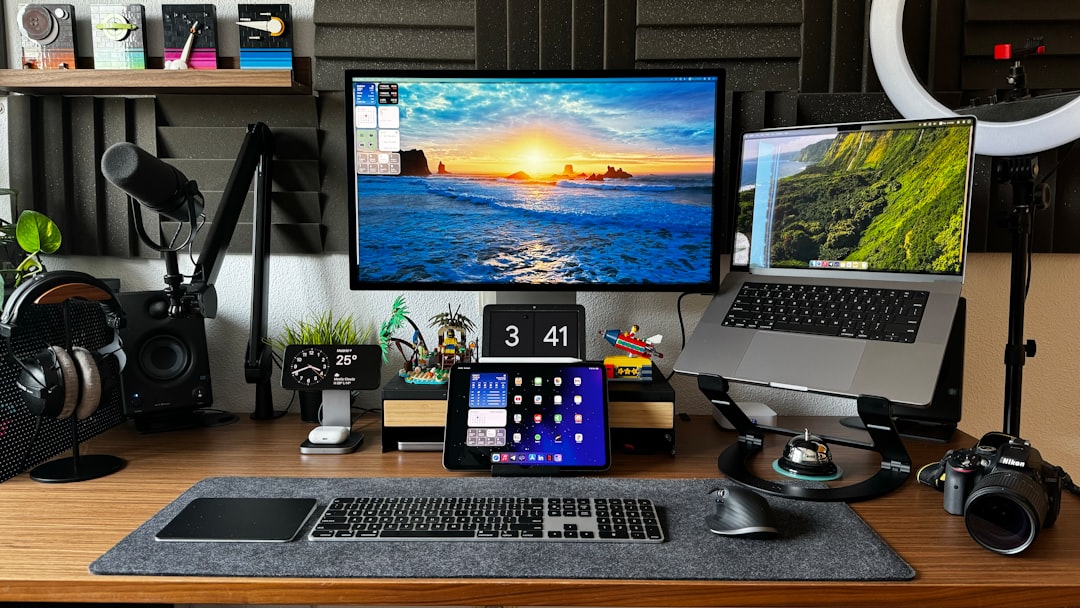
The larger PC screen makes it easier to compare stock performance graphs side-by-side and track historical trends.
Is There a Desktop App for Stash?
Currently, Stash does not offer a standalone downloadable desktop application for Windows or macOS. The web-based platform provides all essential functionalities. Users seeking a more app-like experience can create a browser shortcut:
- Open Stash in Google Chrome.
- Click the three-dot menu.
- Select More Tools > Create Shortcut.
- Choose Open as window.
This creates a desktop icon that launches Stash in a dedicated window, mimicking a traditional application.
Security Best Practices
Financial accounts require extra caution. When using Stash on a PC, users should follow best practices to protect sensitive information.
- Use strong, unique passwords
- Enable two-factor authentication
- Keep the operating system updated
- Install reliable antivirus software
- Log out after each session
A secure home network with WPA3 encryption is also recommended for optimal safety.
Troubleshooting Common Issues
Some users may experience minor technical difficulties during setup. The most common issues include:
- Browser compatibility problems: Update the browser or clear cache and cookies.
- Verification delays: Ensure submitted details match official documents.
- Bank connection errors: Retry after confirming login credentials.
- Page loading issues: Check internet connection stability.
Stash also provides customer support through chat and email for additional help.
Advantages of Using Stash on a PC
Although mobile investing is convenient, many users find desktop management more efficient for serious financial planning. PCs allow easier tax document downloads, performance analysis, and side-by-side investment comparisons with external research.
Furthermore, the keyboard enables faster data entry during identity verification and bank linking processes.
Conclusion
Setting up Stash on a PC is a simple and secure process that requires only a web browser and accurate personal information. From account registration and identity verification to funding and portfolio management, the web platform delivers a comprehensive investing experience. By following security best practices and carefully selecting investment preferences, users can confidently manage their financial growth from their desktop environment. Whether new to investing or expanding an existing portfolio, accessing Stash on a PC offers clarity, convenience, and control.
Frequently Asked Questions (FAQ)
-
1. Can Stash be downloaded on Windows or macOS?
No, Stash does not currently offer a downloadable desktop application. It can be accessed through any modern web browser. -
2. Is it safe to use Stash on a PC?
Yes, as long as users access the official website and follow security measures such as enabling two-factor authentication and avoiding public Wi-Fi. -
3. Do all mobile features work on the PC version?
Most essential features, including investing, portfolio tracking, and account management, are fully available on the web platform. -
4. How long does account verification take?
Verification is often completed within minutes, but in some cases, it may take up to a few business days if additional documentation is required. -
5. Can multiple accounts be managed from one PC?
Yes, users can log out and log into different accounts, but each should have separate login credentials for security. -
6. What should be done if login attempts fail?
Users should reset their password through the “Forgot Password” option or contact Stash support if the issue persists.