


Few things are more frustrating for gamers than a handheld console that refuses to turn on, and for many Steam Deck users, this can cause genuine anxiety. Whether you’re heading out on a trip or just settling in for a long gaming session, discovering that your Steam Deck isn’t powering on can be a major inconvenience. Thankfully, most issues have a fix, and this guide breaks down each possible scenario to help users get their device running again.
TL;DR (Too Long; Didn’t Read)
If your Steam Deck isn’t powering on, don’t panic. The issue might be as simple as a drained battery or a frozen screen. Begin by charging your device using the original charger for at least 30 minutes. If that doesn’t work, try a force reboot, inspect for hardware issues, and consider entering Recovery Mode. If all else fails, contact Valve support for professional assistance.
1. Check the Battery and Charging Port
Sometimes the simplest explanation is the right one. One of the most common reasons the Steam Deck won’t turn on is that the battery is completely dead. It’s also possible the charger or USB-C port is malfunctioning.
- Use the official charger: Third-party or low-power chargers may not provide the necessary wattage to awaken the Steam Deck from a deep battery drain.
- Check the charging LED indicator: When the charger is correctly connected, a faint LED light should illuminate near the top of the Deck. If there’s no light, try a different outlet or USB-C cable.
- Charge for 30 minutes or more: If the internal battery was fully drained, it may take time before the Steam Deck responds or shows signs of life.

2. Perform a Force Restart
At times, the Steam Deck may be powered on internally but unresponsive due to a software crash or frozen screen. To resolve this, users should attempt a force restart.
To perform a force restart:
- Press and hold the Power button for approximately 12 seconds.
- Wait a few seconds, then press the Power button again to attempt a normal startup.
This often clears minor boot problems and allows the system to reboot correctly.
3. Inspect for Display Issues
There might be instances where the Steam Deck is actually working but the display isn’t functioning. To troubleshoot a display failure:
- Adjust screen brightness: Sometimes the brightness may be too low to notice without a properly lit room.
- Listen for sounds: Check if the device boots by listening for the fan or startup chimes, indicating that only the screen is unresponsive.
- Connect to an external display: Use the USB-C port to connect the Steam Deck to a dock or monitor to see if the user interface appears externally.
4. Boot into Recovery Mode
If the Deck shows signs of life but struggles to launch properly, Recovery Mode might help restore functionality.
To enter Recovery Mode:
- Ensure the device is off.
- Hold the Volume Down button and tap Power.
- The Steam Deck should boot into the Boot Manager from where you can launch the SteamOS Recovery environment.
From here, users can perform troubleshooting options like re-imaging the Deck, reinstalling SteamOS, or accessing disk tools.
5. Examine for Hardware Damage
If your Steam Deck still doesn’t respond and all software fixes have failed, it may be time to investigate possible hardware issues.
Things to check include:
- USB-C port damage: Bent pins or debris could prevent charging or data transfer.
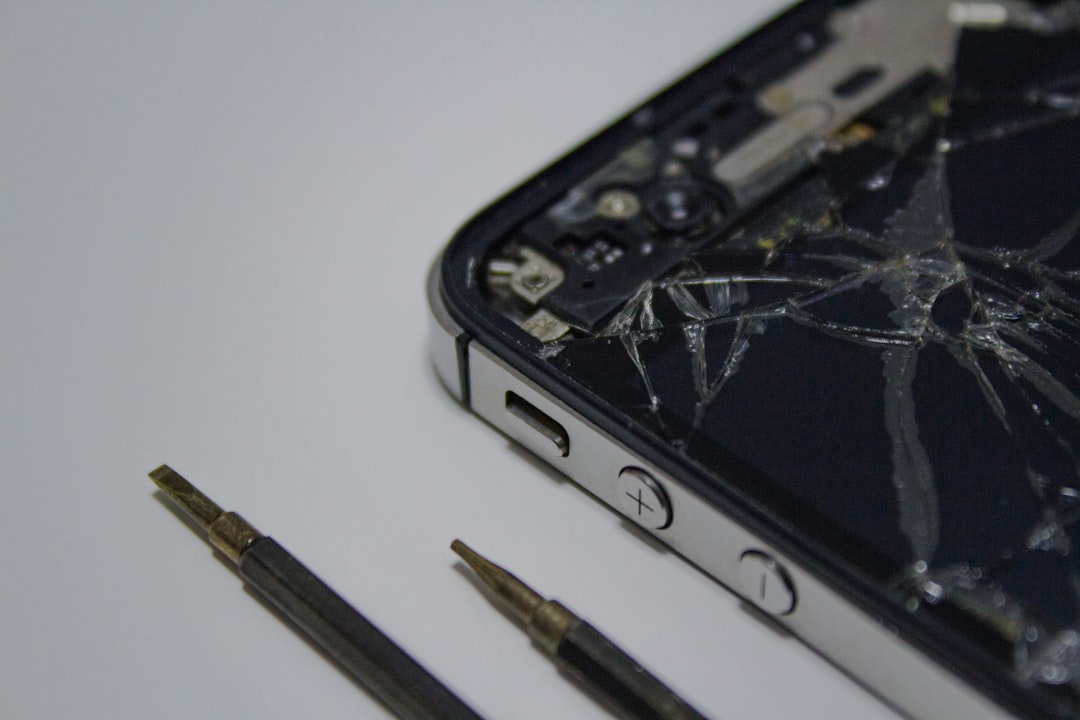
- Physical trauma: Drops or water exposure can ruin internal components. Signs of impact or liquid residue may indicate hardware failure.
- Battery issues: A swollen battery or overheating symptoms may require professional repair.
6. Contact Steam Support
After following all the above steps, if your Steam Deck still doesn’t power on, your next best move is to contact Steam Support directly. Make sure to have the device’s serial number on hand, along with your purchase details if under warranty.
Steam Support can facilitate hardware repairs, replacements, or further technical insights specific to your unit’s behavior. External troubleshooting is helpful, but certified technical assistance ensures peace of mind, especially if the device needs factory servicing.
7. Preventative Tips to Avoid Power Issues
Now that the Deck is operational (hopefully), here are some helpful tips to reduce the chances of future power problems:
- Avoid fully draining the battery: Recharge when the battery drops below 20%.
- Use only trusted charging accessories: Official or high-quality USB-C chargers ensure proper voltage.
- Keep it updated: Software updates can include fixes for power management or freezing bugs.
- Reboot regularly: Restarting every few days can help clear memory and prevent lockups.
Frequently Asked Questions (FAQ)
Why won’t my Steam Deck turn on at all?
This could be due to a drained battery, corrupted system software, or internal hardware failure. Try charging it fully and performing a force reboot before considering hardware inspection.
How long should I charge my Steam Deck before it powers on?
If the battery was completely drained, it may need 30-60 minutes of charging before it becomes responsive again. Always use a high-power USB-C charger.
Can I open up my Steam Deck to fix it myself?
Technically yes, but doing so may void your warranty if you’re not careful. Only advanced users comfortable with hardware should attempt internal repairs. For others, it’s safer to contact Steam Support.
What is the boot LED indicator and where can I find it?
It’s a small light near the top edge of the Steam Deck that shows charging and power status. If you plug in the charger and see no light, there might be an issue with the power supply or charging port.
Is there a way to back up data from a non-booting Steam Deck?
If Recovery Mode is accessible, you can connect the Deck to a PC for file transfer. Otherwise, internal SSD removal may be necessary and should be done by experienced users or professionals.
Troubleshooting a Steam Deck that won’t start can be daunting, but most power issues are manageable with the right steps. With a bit of patience and careful handling, many users will find their device back in working order without needing a repair center.