


Streaming should be seamless, especially on a premium device like Apple TV. However, encountering Netflix error code 2-0 can instantly interrupt the viewing experience. This error typically signals a connectivity or app-related issue that prevents Netflix from loading content properly. Fortunately, there are several quick and effective fixes that can restore smooth streaming in just a few minutes.
TL;DR: Netflix error code 2-0 on Apple TV is usually caused by internet connectivity problems, outdated apps, or temporary system glitches. Restarting the Apple TV, checking your network connection, and updating or reinstalling the Netflix app often resolve the issue quickly. In some cases, resetting network settings or updating tvOS may be necessary. Following a systematic troubleshooting process ensures you get back to streaming fast.
What Is Netflix Error Code 2-0?
Netflix error code 2-0 generally appears when the app struggles to connect to Netflix servers. This may result from:
- Unstable or weak internet connection
- Temporary server communication problems
- Outdated Netflix app version
- Corrupted cache data
- tvOS software issues
While the error can be frustrating, it rarely indicates a serious hardware problem. Most users can resolve it with a few simple troubleshooting steps.
Step 1: Check Your Internet Connection
The most common cause of Netflix error 2-0 is an unstable internet connection. Even if other apps seem to work, Netflix may require a more stable connection to function correctly.

How to Check Network Status on Apple TV:
- Open Settings on Apple TV.
- Select Network.
- Confirm that your device is connected to Wi-Fi or Ethernet.
- Check signal strength and IP address status.
Recommended Fixes:
- Restart your router and modem (unplug for 60 seconds).
- Move your router closer to Apple TV if using Wi-Fi.
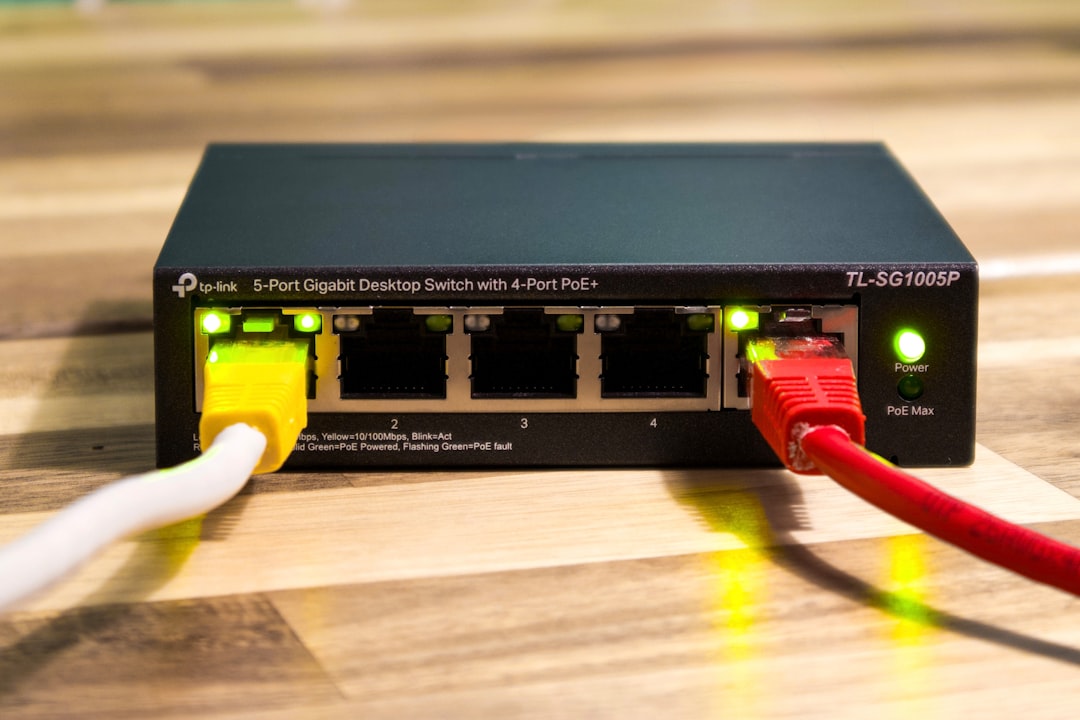
- Switch to a wired Ethernet connection for better stability.
- Run an internet speed test (at least 5 Mbps recommended for HD).
If the connection appears stable but the issue persists, proceed to the next step.
Step 2: Restart Apple TV
Temporary software glitches can interfere with Netflix connectivity. Restarting Apple TV clears temporary system memory and refreshes processes.
How to Restart Apple TV:
- Go to Settings > System > Restart.
- Alternatively, unplug the Apple TV from power for 10–15 seconds and plug it back in.
After rebooting, reopen Netflix and check whether the error disappears. In many cases, this simple step resolves error code 2-0 immediately.
Step 3: Force Close and Reopen Netflix
Apps may sometimes freeze or retain corrupted temporary data. Force closing the Netflix app ensures a clean restart.
How to Force Close Netflix:
- Double-press the TV button on your remote to open the app switcher.
- Swipe to find the Netflix app.
- Swipe up to close it.
- Reopen Netflix from the home screen.
If error 2-0 reappears, continue troubleshooting with app updates.
Step 4: Update the Netflix App
Running an outdated version of Netflix may cause compatibility issues with Apple TV’s operating system.
To Check for Updates:
- Open the App Store on Apple TV.
- Search for Netflix.
- If an update is available, select Update.
Keeping apps updated ensures bug fixes and improved server compatibility.
Step 5: Update Apple TV (tvOS)
Outdated system software can interfere with streaming apps. Updating tvOS ensures the device runs the latest patches and performance improvements.
Steps to Update tvOS:
- Go to Settings.
- Select System.
- Choose Software Updates.
- Select Update Software if available.
After installation, restart the device and test Netflix again.
Step 6: Sign Out and Sign Back Into Netflix
Account-related sync errors can trigger Netflix error code 2-0. Signing out refreshes authentication data.
How to Sign Out:
- Open Netflix.
- Go to Settings or Get Help.
- Select Sign Out.
- Sign back in using your credentials.
This resets your session and can eliminate temporary account conflicts.
Step 7: Reinstall Netflix
If Netflix files become corrupted, reinstalling the app can provide a clean start.


To Reinstall Netflix:
- Highlight the Netflix app on the home screen.
- Press and hold the touch surface until the icon jiggles.
- Press the Play/Pause button.
- Select Delete.
- Re-download Netflix from the App Store.
After reinstalling, log in and check whether streaming resumes normally.
Step 8: Reset Network Settings
If none of the above solutions works, resetting network settings may resolve deeper connectivity conflicts.
How to Reset Network:
- Go to Settings > System > Reset.
- Select Reset Network Settings.
This removes saved Wi-Fi networks and passwords, so be prepared to reconnect afterward.
Step 9: Check Netflix Server Status
Sometimes the problem isn’t on the user’s end. Netflix servers may experience temporary outages.
How to Verify:
- Visit Netflix’s official status page.
- Check platforms like DownDetector.
- Search social media for outage reports.
If servers are down, the only solution is to wait until Netflix resolves the issue.
When to Contact Support
If all troubleshooting steps fail, it may be time to contact support. Reach out to:
- Netflix Support via their app or website.
- Apple Support if you suspect hardware or tvOS issues.
Before contacting support, note:
- The exact error message displayed.
- Your Apple TV model.
- Your internet type (Wi-Fi or Ethernet).
- Steps already attempted.
This speeds up the resolution process significantly.
Preventing Netflix Error Code 2-0 in the Future
Prevention is always better than troubleshooting. Maintaining a stable streaming setup reduces the chances of errors reappearing.
Best Practices for Smooth Streaming:
- Keep Apple TV and apps updated automatically.
- Use a high-speed, stable internet connection.
- Restart your router monthly to prevent network congestion.
- Avoid overloading your network with multiple devices streaming simultaneously.
- Enable automatic updates in Apple TV settings.
Regular maintenance ensures uninterrupted entertainment.
Frequently Asked Questions (FAQ)
1. What exactly does Netflix error code 2-0 mean?
It typically indicates a connectivity issue between the Netflix app and Netflix servers. The problem may stem from internet instability, outdated apps, or temporary software glitches.
2. Does restarting Apple TV really fix error code 2-0?
Yes. Restarting clears temporary memory and resolves minor system conflicts, which often eliminates the error.
3. Why does Netflix work on other devices but not on Apple TV?
This may suggest a device-specific issue such as outdated tvOS software, corrupted app data, or network configuration problems on the Apple TV itself.
4. Will resetting Apple TV erase all data?
A full reset erases settings and apps, but resetting only network settings removes Wi-Fi passwords. Try less drastic solutions before performing a complete reset.
5. How fast should internet be for Netflix on Apple TV?
Netflix recommends at least 3 Mbps for SD content, 5 Mbps for HD, and 15 Mbps for 4K streaming.
6. Is Netflix error code 2-0 related to account suspension?
In most cases, no. However, signing out and back in ensures account authentication is refreshed.
7. How long does it take to fix Netflix error 2-0?
Most users resolve it within 5–15 minutes by restarting the device, checking internet connectivity, or updating the app.
With the right troubleshooting approach, Netflix error code 2-0 on Apple TV can be resolved quickly and effectively. By following the steps above, users can restore smooth streaming and return to enjoying their favorite shows without prolonged interruption.