Navigating with Google Maps has become second nature for millions of drivers around the globe. But what happens when your dependable route suddenly veers off course or gets stuck mid-direction? Whether you’re on Android or iOS, unexpected glitches in Google Maps driving directions can lead to missed exits, confusion, and frustration. Fortunately, there are several proven solutions to fix this issue and get you back on track—literally.
TLDR: Driving Directions Not Working Right? Here’s the Quick Fix
If Google Maps on your Android or iPhone suddenly starts offering incorrect directions or goes off-route, check your GPS and location settings first. Clearing cache, updating the app, and ensuring a stable data connection are other key steps. Persistent issues might be connected to background app restrictions or corrupted app data. Keep reading for detailed troubleshooting strategies.
1. Check GPS and Location Services
Google Maps relies heavily on your phone’s GPS and location services to determine your current position accurately. If these services aren’t working properly, your routes may appear off or keep rerouting unexpectedly.
Steps to verify GPS functionality:
- Android: Go to Settings > Location. Ensure it’s turned on and set to High Accuracy.
- iOS: Navigate to Settings > Privacy & Security > Location Services. Confirm that it’s enabled and that Google Maps has permission to access location data.
Also, make sure you’re outside or near a window. Dense buildings, tunnels, or being indoors can interfere with GPS accuracy.
2. Update Google Maps
An outdated version of the app might be causing bugs or compatibility issues with newer OS updates, resulting in navigation errors.
- On Android: Open the Google Play Store, search for Google Maps, and tap Update if available.
- On iOS: Open the App Store, go to your profile, and scroll down to see pending updates. Look for Google Maps and tap Update.
Keeping the app updated ensures you get the latest improvements and fixes from Google.
3. Check for Internet Connectivity
While GPS determines your location, live traffic data and rerouting strongly depend on an active internet connection. A weak or unstable network can lead to miscalculations in the map’s route planning.
- Ensure your phone has a strong 4G/5G or Wi-Fi signal.
- Toggle airplane mode on and off to reset the network connection.
- Restart your phone to refresh the network interface.

4. Clear Google Maps Cache and Data (Android Only)
On Android devices, the accumulation of cached data can cause performance issues or lead to incorrect app behavior.
To clear cache and data:
- Go to Settings > Apps > Google Maps.
- Tap Storage.
- Click Clear Cache. If that doesn’t help, try Clear Data (note: this will reset your preferences).
This step often resolves odd app behaviors, including routes that suddenly deviate or stall.
5. Toggle Location Permissions
Sometimes, refreshing the location permissions for Google Maps can resolve erratic driving direction behavior.
- On Android: Go to Settings > Apps > Google Maps > Permissions > Location. Make sure it’s set to Allow all the time.
- On iOS: Navigate to Settings > Google Maps > Location and set it to Always.
This enables the app to fetch your location even when it’s running in the background, which is crucial for real-time turn-by-turn navigation.
6. Turn Off Battery Optimization
Most smartphones have aggressive battery optimization settings that restrict background activity. This can interfere with Google Maps, especially when the screen is off or when switching between apps.
How to disable battery optimization:
- Android: Settings > Battery > Battery Optimization > Google Maps, then set it to Don’t optimize.
- iOS: iOS doesn’t let users restrict background activity as strictly as Android, but you should check that Low Power Mode is turned off in Settings > Battery.
7. Calibrate the Compass Manually
Sometimes the issue lies not with the GPS or app but with your phone’s compass. An uncalibrated compass can make Maps believe you’re facing the wrong direction, hence botching turns or rerouting randomly.
To calibrate:
- Open Google Maps and move your phone in a figure-eight motion until the beam becomes narrow and points accurately.
- You can also go to Google Maps > Settings > Navigation Settings and tap on Calibrate Compass.
8. Restart Your Phone
As simple as it sounds, rebooting your device can clear temporary glitches or interruptions in GPS signal acquisition. It also refreshes app behavior that might be causing errant routing.
Turn off your phone completely, wait 10–15 seconds, and then power it back on. Open Google Maps again and start navigation to see if the issue is resolved.
9. Reinstall Google Maps
If the problem persists after trying all the steps above, uninstalling and reinstalling Google Maps may be the most effective solution.
- Android: Long-press on the app icon, choose Uninstall. Then install it again from the Google Play Store.
- iOS: Tap and hold the app, tap the X icon, and confirm deletion. Reinstall it via the App Store.
This completely purges potentially corrupted files or bad settings and downloads the latest version of the app afresh.
10. Check for Known Bugs or Outages
On rare occasions, Google Maps navigation issues may stem from glitches in Google’s servers. Visiting forums such as Reddit or Google’s support page can provide insights if a widespread issue is affecting others.
You can also check real-time reports on websites like Downdetector to see if other users are reporting similar problems in your area.
Final Thoughts
If your Google Maps app is taking you off-course, there’s usually a logical explanation—from poor GPS reception to outdated app versions or restrictive device settings. By following the above steps methodically, you should be able to pinpoint and fix the root cause of faulty driving directions on your Android or iOS device.
Try starting with the simplest fixes like restarting the app or calibrating your compass. If it’s a persistent issue, combining multiple steps—like checking permissions, disabling optimizations, and reinstalling the app—can restore your navigation system’s full functionality.
Image not found in postmeta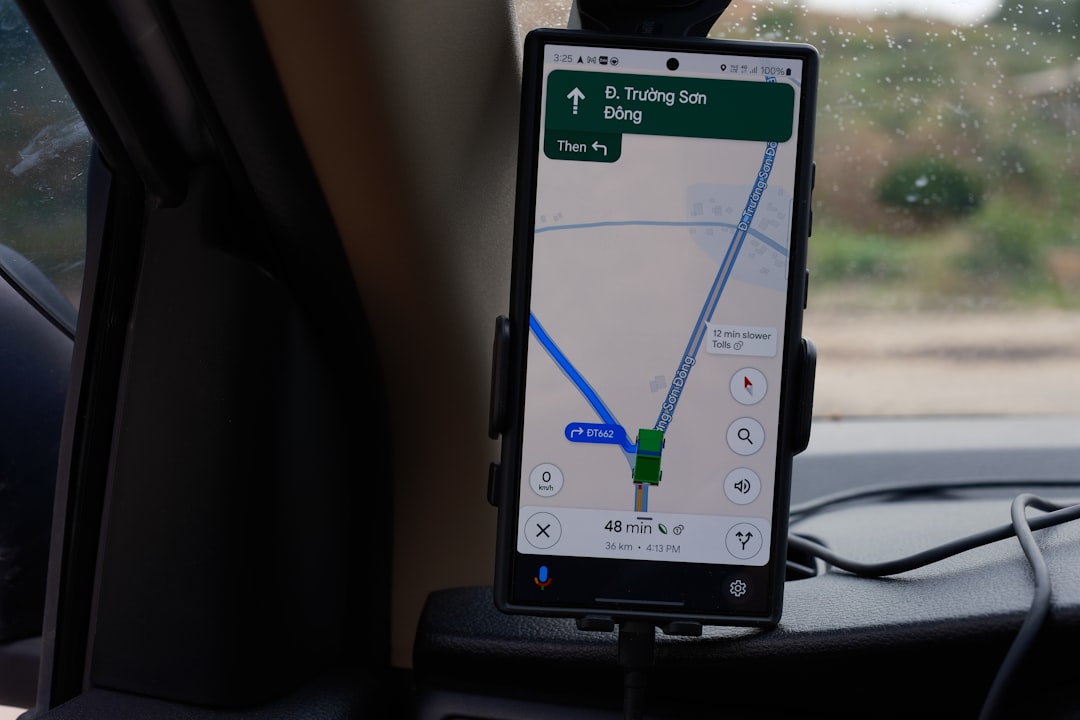
Navigation technology is highly advanced but still reliant on proper device configurations. Stay updated, stay prepared—and let Google Maps guide you without disruption.