So you’ve got a Mac. It’s sleek. It’s shiny. It works like a charm. But now you’re wondering: Is my Mac running on Intel or Apple Silicon? Don’t worry. You’re not alone. And the good news? It takes less than a minute to find out.
TL;DR: Click the Apple logo in the top left corner and choose About This Mac. Look at the “Chip” or “Processor” line. If it says Apple M1, M2, M3 (or similar), you have Apple Silicon. If it says Intel, you’re running an Intel-based Mac. That’s it. Easy.
Why This Even Matters
You might be thinking, “Why should I care?” Fair question.
Knowing your Mac’s processor type helps you:
- Download the right version of apps
- Check compatibility with software
- Understand performance differences
- Troubleshoot problems more easily
- Know the resale value of your device
Some apps have separate downloads for Intel and Apple Silicon. Picking the wrong one can cause slow performance. Or it might not work at all.
Quick Way: Check “About This Mac”
This is the fastest and easiest method. It works on almost every modern macOS version.
Here’s what to do:
- Click the Apple logo in the top-left corner of your screen.
- Select About This Mac.
- Look for a line labeled Chip or Processor.
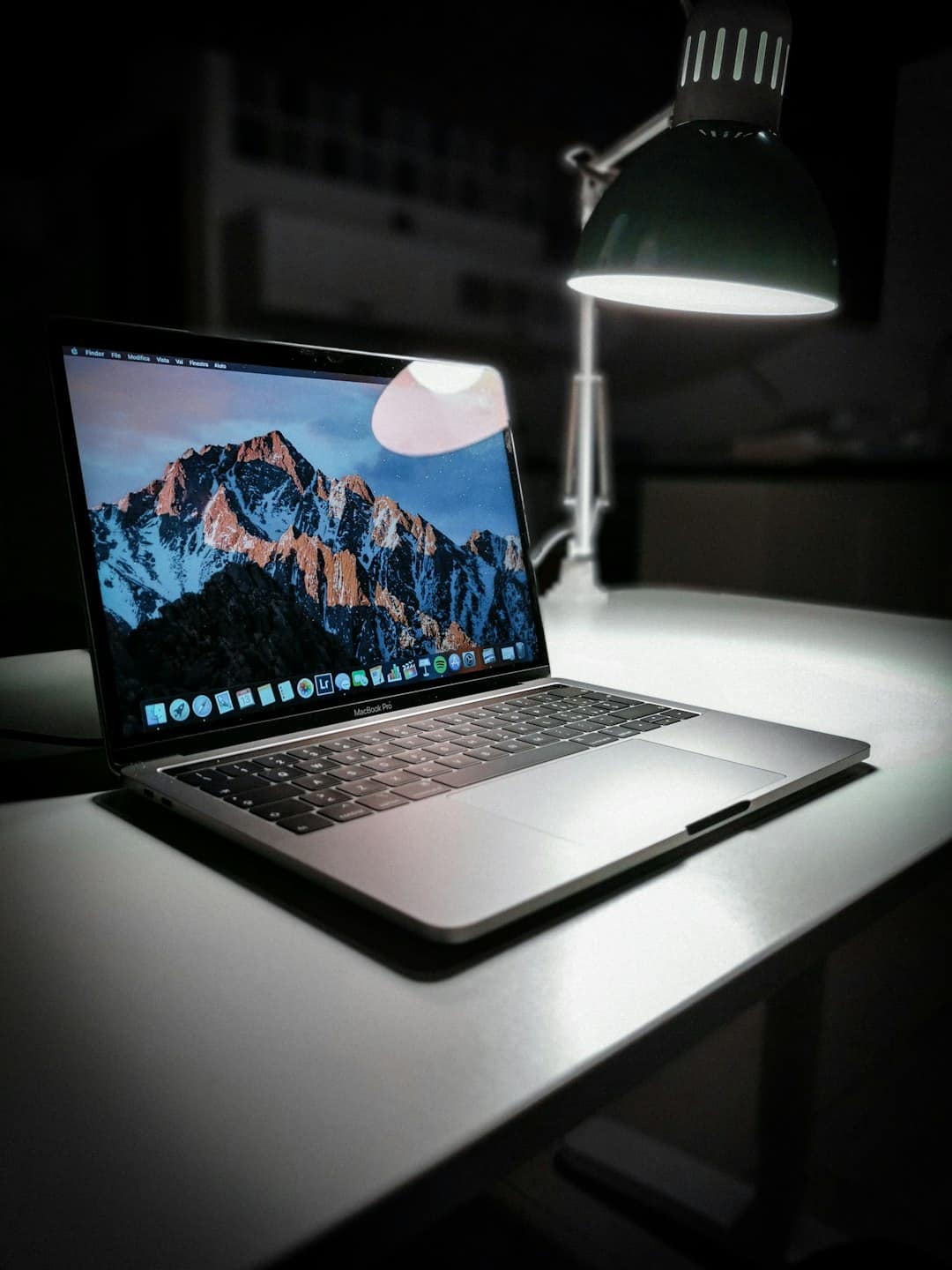
Now read what it says:
- If it says Apple M1, M2, M3, M4 (or similar) → You have Apple Silicon.
- If it says Intel Core i5, i7, i9 or anything with Intel → You have an Intel Mac.
That’s it. No tech degree required.
What’s the Difference Anyway?
Let’s keep this simple.
Intel Macs
- Used in Macs made before late 2020
- Powered by Intel processors
- Work well with older software
- Slightly less power efficient
Apple Silicon Macs
- Introduced in late 2020
- Use Apple’s own chips (M1, M2, M3, and newer)
- Faster performance
- Longer battery life
- Better optimization with macOS
In short? Apple Silicon is newer. Faster. Smarter with power usage.
Alternative Method: System Information
If you love details, this method gives you more technical info.
Follow these steps:
- Click the Apple logo.
- Hold down the Option key.
- Click System Information.
Or:
- Open About This Mac
- Click More Info
- Select System Report
Under Hardware Overview, look at:
- Chip → Apple Silicon
- Processor Name → Intel
This screen also shows memory, serial number, and model identifier.
Do You Have a Clue Just by the Model?
Yes. Sometimes.
If your Mac is:
- MacBook Pro 2021 or newer → Probably Apple Silicon
- MacBook Air 2020 or newer → Likely Apple Silicon
- iMac 24-inch (colorful) → Apple Silicon
But be careful.
The 2020 lineup is tricky. That year had both Intel and M1 models. So don’t rely only on purchase year.
Comparison Chart: Intel vs Apple Silicon
| Feature | Intel Mac | Apple Silicon Mac |
|---|---|---|
| Processor Type | Intel Core i5, i7, i9 | Apple M1, M2, M3, M4 |
| Release Era | Before Late 2020 | Late 2020 and Newer |
| Battery Life | Good | Excellent |
| Performance per Watt | Moderate | High |
| Runs iPhone/iPad Apps | No | Yes |
| Future macOS Support | Limited (eventually ending) | Long-term support expected |
Fun Trick: Check an App’s “Kind”
Here’s a cool little trick.
You can check whether an installed app is running as Intel or Apple Silicon.
- Open Finder.
- Go to the Applications folder.
- Right-click any app.
- Select Get Info.
Look at the line labeled Kind.
- Application (Intel)
- Application (Universal)
- Application (Apple Silicon)
If your Mac is Apple Silicon and the app says Intel, your Mac uses Rosetta 2 to translate it. Pretty clever.
What Is Rosetta 2?
Rosetta 2 is Apple’s built-in translator.
It lets Apple Silicon Macs run apps designed for Intel chips.
You usually don’t even notice it working. It just happens automatically.
But native Apple Silicon apps run smoother. And faster.
Can You Upgrade from Intel to Apple Silicon?
Short answer: No.
The processor is built into the Mac’s logic board. You can’t swap it out.
If you want Apple Silicon, you’ll need a newer Mac.
The good news? Even base-model Apple Silicon Macs are very powerful.
What If You’re Buying a Used Mac?
Definitely check the processor before paying.
Here’s what to ask the seller:
- “Can you open About This Mac?”
- “What does it say under Processor or Chip?”
- “Can you send a photo?”
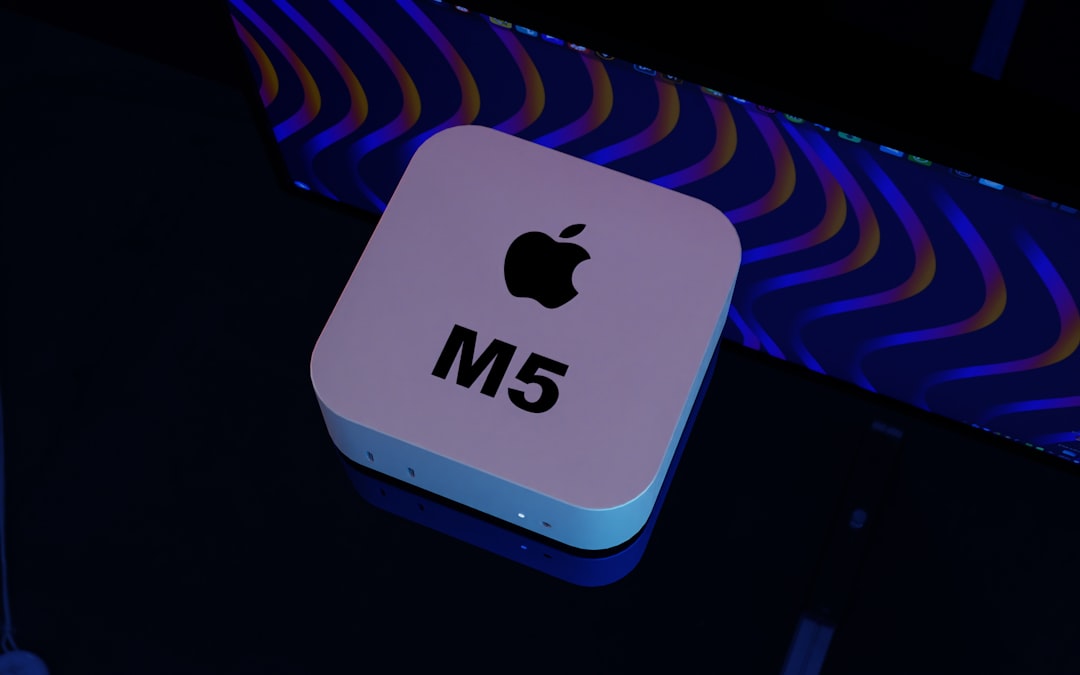
This prevents confusion. And protects your wallet.
Terminal Method (For the Curious)
If you like feeling like a hacker, try this.
- Open Terminal.
- Type:
uname -m - Press Enter.
If it returns:
- arm64 → Apple Silicon
- x86_64 → Intel
Simple. Powerful. Geeky.
Which One Is Better?
Let’s be honest.
Apple Silicon is the future.
It’s faster. Cooler. More power-efficient. And better optimized for macOS.
But Intel Macs are still solid machines. Especially for:
- Running older software
- Using Boot Camp (Windows dual boot)
- Specific enterprise tools
Each has its place.
Common Questions
Is M1 better than Intel i7?
In most everyday tasks? Yes. It’s often faster and uses less power.
Will Intel Macs stop getting updates?
Eventually, yes. Apple is slowly transitioning fully to Apple Silicon.
Can I run Windows?
Intel Macs can use Boot Camp. Apple Silicon uses virtualization tools instead.
Final Thoughts
Checking whether your Mac is Intel or Apple Silicon takes less than a minute.
Click. Look. Done.
No complicated tools. No downloads. No stress.
If you see Intel, you have the classic generation. If you see M1, M2, M3, or newer, welcome to the Apple Silicon era.
Now you know. And knowing is half the battle.
Go ahead. Click that Apple logo. Your answer is waiting.