Getting DEVERROR 0xDBE46539 in BO6 on PS5 is frustrating because it can stop Black Ops 6 from loading multiplayer, Zombies, or the main game after an update. Current player reports usually connect this dev error to content-pack mix-ups, wrong installed files, or a PlayStation license problem rather than a simple controller or internet issue.
This guide explains what the error means, why players think it happens, how to fix it on PS5, and what you can do to avoid it later. Official Activision known-issues pages do not clearly define this exact code, so I’ll keep the article careful and label community-reported fixes as community-reported fixes.
What Is DEVERROR 0xDBE46539 in BO6 on PS5?
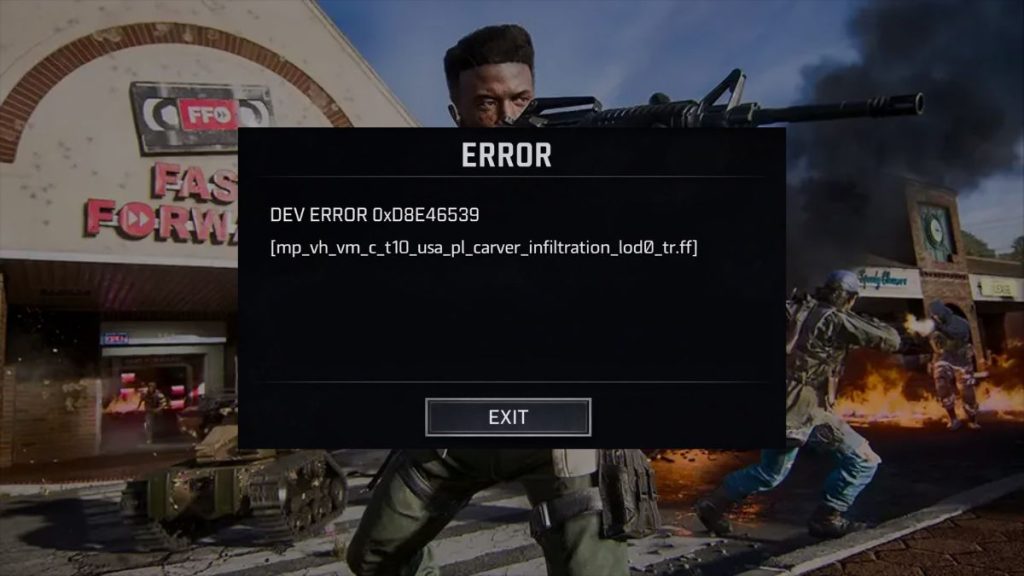
DEVERROR 0xDBE46539 is a Black Ops 6 PS5 launch error that players often report after a seasonal update, a content install change, or a Call of Duty HQ pack issue. Community posts commonly describe it as BO6 trying to load the wrong files or the wrong asset set on PS5, especially when BO6 content, Warzone packs, or BO7-related files appear mixed together. I did not find an official Activision support article that confirms one exact root cause for this code, so it is better to describe it as a likely install, content, or license mismatch problem rather than a proven single bug.
Players usually see this error when opening BO6 from Call of Duty HQ, loading into multiplayer, or trying to access Zombies on PS5. Many reports say the issue began right after an update or when new packs auto-installed in a way players did not expect. Some also say BO6 fails while other Call of Duty content still appears installed, which is why pack conflict, wrong add-ons, and license sync get mentioned so often in community troubleshooting.
Common Causes of DEVERROR 0xDBE46539 in BO6 on PS5
This error can happen for several reasons, depending on your installed BO6 packs, Warzone add-ons, and PSN license state. The causes below come mostly from player reports, not from a clear official Activision breakdown for this exact dev error.
- Wrong BO7-related files may be installed on the PS5, and some players say BO6 then tries to load the wrong asset files.
- Missing or incomplete BO6 content packs may stop multiplayer or Zombies from loading properly.
- Mixed BO6 and Warzone add-ons may create a content conflict inside Call of Duty HQ.
- A PSN license or digital ownership sync problem may stop the correct game content from being recognized.
- A broken title update or partial download may leave the game in an unstable install state after a season change.
- Corrupted game data or save data may keep the error active even after a restart. This is reported by players, but I did not find an official Activision article confirming it for this code.
- Account and region mismatches can also affect content recognition in some PS5 cases, especially with disc versions and account-region differences.
How to Fix DEVERROR 0xDBE46539 in BO6 on PS5?
In most reported cases, the fixes focus on PSN license refresh, content-pack cleanup, and checking which Call of Duty files are installed on the console. Start with the easy fixes first, then move to the pack and reinstall steps if the error stays.
Fix #1: Restart the PS5
A simple PS5 restart can clear temporary system state, refresh storage recognition, and force Call of Duty HQ to re-check installed BO6 content. It will not fix every pack conflict, no, but some players report that a clean restart helped BO6 load again after the dev error appeared.
This is a good first step because it is quick and it does not change your files, licenses, or settings. If the problem is only a temporary content-read issue after an update, restarting may be enough.
Fix #2: Sign out of PSN and sign back in
Many player reports say signing out of PlayStation Network, then signing back in, helped refresh account access and game entitlement checks. That can matter when BO6 content is installed but PS5 is not reading the license state correctly.
Follow the steps below to easily sign out of PSN and sign back in.
- Open PS5 Settings.
- Go to Users and Accounts.
- Choose your account options.
- Sign out of PlayStation Network.
- Restart the PS5.
- Sign back in with the same PSN account.
- Open BO6 again and test the game.
This fix is based on community reports, not on a clear official Activision article for this specific code.
Fix #3: Restore licenses on PS5
Restore Licenses is one of the most repeated fixes for this BO6 dev error on PS5. Players say it helps the console re-check digital ownership and match the correct content with the correct account. When the problem is tied to license sync, this step can be more useful than reinstalling right away.
Try these simple steps to quickly restore licenses on your PS5.
- Open Settings on your PS5.
- Go to Users and Accounts.
- Select Other.
- Choose Restore Licenses.
- Let the process finish completely.
- Restart the PS5 after the restore completes.
- Launch BO6 and see if the error is gone.
This is strongly supported by player reports, but I still did not find an official Activision page that says restore licenses is the confirmed fix for 0xDBE46539.
Fix #4: Check that all required BO6 and Warzone packs are installed
Some players say the game starts failing because BO6, Warzone, and other Call of Duty content packs are not installed in the combination PS5 expects. This matters more if you switch between BO6 multiplayer, Zombies, and Warzone inside Call of Duty HQ. If the wrong packs are missing, partial, or mixed, the launcher may point BO6 to the wrong content.
Here are the following steps which help you to check the installed BO6 and Warzone packs.
- Highlight Call of Duty on the PS5 home screen.
- Press the Options button on the controller.
- Open Manage Game Content or the installed content screen.
- Review BO6 multiplayer, Zombies, and related content packs.
- Check whether any expected BO6 pack is missing.
- Install the missing BO6 or required Warzone pack if needed.
- Restart the game after the install finishes.
This step is based on community troubleshooting around mixed BO6 and Warzone content.
Fix #5: Delete BO7-related files or wrong add-ons
This is one of the strongest community-reported fixes for DEVERROR 0xDBE46539 on PS5. Several players say BO6 was trying to load BO7 or wrong Warzone files, and removing those files stopped the dev error. I cannot confirm that as an official Activision root cause, but it is repeated enough in current reports that it belongs in the guide.
Below are the steps that will guide you to remove the wrong BO7-related files or add-ons.
- Open the Call of Duty content management screen on PS5.
- Look for BO7-related files or add-ons that are installed with BO6.
- Review any extra Warzone or cross-title content you do not need.
- Delete the BO7-related or clearly wrong add-ons first.
- Leave the core BO6 packs installed.
- Restart the PS5 after the removal finishes.
- Launch BO6 again and test multiplayer or Zombies.
This fix is community-reported and may affect how Warzone works for some players, so do it carefully.
Fix #6: Reinstall BO6 content packs
If your BO6 files look mixed up, incomplete, or broken after an update, reinstalling the BO6 content packs can give the game a cleaner file set. This is more time-consuming, sure, but it makes sense when BO6 keeps loading the wrong content or when earlier fixes do not help. Some players report that reinstalling specific BO6 packs worked better than deleting the whole Call of Duty install. Others had to reinstall more than once before the game recognized the right content again.
Fix #7: Delete Call of Duty save data if nothing else works
This is a late-stage workaround, not an early fix. Some players say deleting the Call of Duty save file on PS5 finally cleared the dev error after reinstall attempts and license steps failed. Because save data can store local settings and progression-related local data, this step is more disruptive and should come after the safer fixes.
The following steps will show you how to delete local Call of Duty save data on PS5.
- Open PS5 Settings.
- Go to Saved Data and Game or App Settings.
- Open Saved Data for PS5 Games.
- Find Call of Duty or Black Ops 6 data.
- Review the save file carefully before deleting anything.
- Delete the local save data only if you are ready to test this workaround.
- Restart the console and open BO6 again.
This fix comes from player reports, not from a confirmed official support note for this code.
Fix #8: Wait for an update if the error started after a new season
If the dev error started right after a season update, a title update, or a content reshuffle inside Call of Duty HQ, the problem may not be fully on your side. Multiple players reported seeing the issue soon after an update, which suggests some cases come from patch-side install problems or content assignment mistakes.
In that situation, you can still try the local fixes, but you may also need to wait for a new update or hotfix from Activision and Treyarch. If many PS5 players report the same error at the same time, that is a strong clue the issue is wider than one console.
Prevention Tips to Avoid DEVERROR 0xDBE46539 in Future
You may not be able to prevent every Call of Duty HQ content bug, but you can lower the chance of repeat pack conflicts on PS5. These simple habits help keep BO6, Warzone, and account licenses in a cleaner state after updates.
- Check installed add-ons after major BO6 or Warzone updates.
- Avoid leaving clearly unwanted BO7-related packs installed if you do not need them.
- Restore licenses if PS5 starts acting like owned content is missing.
- Restart the PS5 after large Call of Duty updates so the console re-checks storage and licenses.
- Keep enough free storage for BO6 packs and update files to install correctly. Player reports around content confusion often happen during heavy update periods.
- Double-check BO6 pack selection inside Call of Duty HQ or PS5 content management.
- Watch community reports after new seasons so you can tell the difference between a local problem and a wider PS5 update issue.
Conclusion
To summarize, DEVERROR 0xDBE46539 in BO6 on PS5 is commonly treated by players as a content mismatch, wrong-file install, or PSN license sync problem. The most repeated fixes are restoring licenses, signing out of PSN and back in, checking BO6 and Warzone packs, and removing BO7-related files that should not be there. Some players also needed a restart, a reinstall, or even local save-data deletion. Official Activision documentation does not clearly define this exact dev error in the sources I found, so the pack and license explanation is best understood as a strong community pattern, not a confirmed official root-cause statement.
Start with the safer fixes first, then move to content cleanup and reinstall steps only if needed. If the issue keeps coming back, contact Activision Support and share the exact error code, your PS5 setup, which packs are installed, and the steps you already tried.
And if this article helped, comment with the fix that worked for you and share it with another BO6 player stuck on the same dev error.