


Seeing the ARMR0002 error in ARC Raiders can stop your excitement fast. You open the game, expect it to load, and then it blocks you before anything starts. This error matters because it prevents the game from connecting or launching properly. Sometimes it shows up after a network change, and sometimes it appears without a clear reason.
This guide explains what the error means, why it happens, how to fix it safely, and how to avoid it later.
What Is ARMR0002 Error in ARC Raiders?
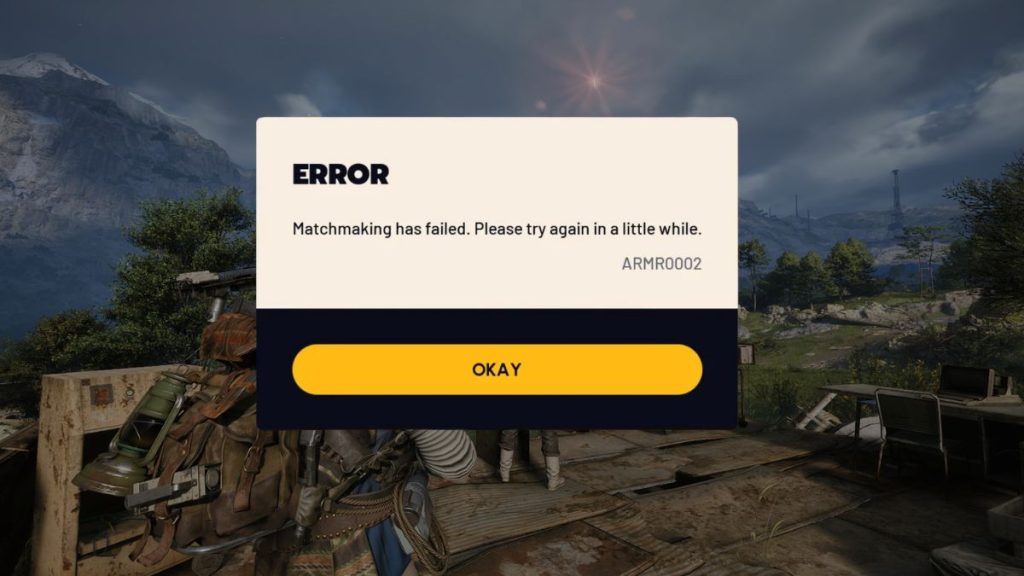
The ARMR0002 error in ARC Raiders is a connection-related error. It appears when the game cannot communicate with required online services during startup. This includes login checks, server handshakes, or session validation. The error does not point to graphics issues, corrupted saves, or cheating concerns. Instead, it signals that the connection between your system and the game servers failed at an early stage.
Most players see the ARMR0002 error while launching the game or during the connection screen. It often appears before reaching the main menu or loading into the game world. In many cases, the game closes or stays stuck on a loading screen.
Common Causes of ARMR0002 Error in ARC Raiders
This error can happen for different reasons, depending on both server status and your local network. Some causes are temporary, while others come from connection settings. Below are the most common reasons players face this issue.
- Temporary ARC Raiders server maintenance
- Unstable or interrupted internet connection
- Internet service provider routing problems
- VPN or proxy service interference
- DNS resolution issues
- Firewall blocking game traffic
- Expired launcher session or cached data
How to Fix ARMR0002 Error in ARC Raiders?
In most cases, the ARMR0002 error clears once the connection path is restored. However, the right fix depends on whether the issue comes from the server side or your network. Try the fixes below in order. Move to the next one only if the error stays.
Fix #1: Check ARC Raiders Server Status
Sometimes the issue is not on your end. ARC Raiders servers may be under maintenance or facing temporary outages. When that happens, the game blocks all new connections. Checking server status helps confirm this quickly.
Follow the steps below to easily check ARC Raiders server status:
- Open your web browser
- Visit the official Embark Studios website
- Open the news or announcements section
- Look for server maintenance notices
- Check affected regions and time windows
- Compare it with your local time
- Wait until servers are fully online before retrying
Fix #2: Restart ARC Raiders and the Launcher
Launcher sessions can expire or become unstable. When that happens, connection tokens fail and cause ARMR0002. Restarting the launcher clears cached sessions and requests a fresh connection.
After restarting, log in again and try launching the game. Many players fix the issue with this simple step.
Fix #3: Restart Your Internet Connection
Network routing issues can trigger the ARMR0002 error. Restarting your modem or router refreshes your IP address and clears temporary connection paths. This helps if your previous route was unstable or blocked.
Turn off your router for a minute, turn it back on, and wait for the connection to stabilize before launching the game again.
Fix #4: Disable VPN or Proxy Services
VPNs and proxy services route traffic through shared servers. ARC Raiders may block these IPs to prevent abuse or region bypassing. This often causes the ARMR0002 error during connection attempts.
Once the VPN is disabled, the game can see your real IP address and connect normally.
Here’s how you can disable VPN or proxy services in just a few seconds:
- Close ARC Raiders and the launcher
- Open your VPN or proxy application
- Click Disconnect or Turn Off
- Make sure the VPN icon disappears
- Disable any browser proxy settings
- Restart your internet connection
- Launch ARC Raiders without the VPN
Fix #5: Change DNS Settings
DNS problems can prevent your system from reaching ARC Raiders servers. If DNS fails to resolve server addresses correctly, the connection request may be rejected. Changing DNS settings helps your system find the correct server routes.
The following steps will show you how to change DNS settings properly:
- Open Control Panel
- Go to Network and Internet
- Click Network and Sharing Center
- Select Change adapter settings
- Right-click your active connection
- Click Properties
- Open Internet Protocol Version 4
- Set DNS to automatic or a trusted provider
- Save changes and restart your network
Fix #6: Allow ARC Raiders Through Firewall
Firewalls sometimes block outgoing game traffic without showing warnings. If ARC Raiders or its launcher lacks permission, the connection never reaches the server. This results in the ARMR0002 error.
Allowing the game through the firewall restores proper communication.
Perform the following steps carefully to allow ARC Raiders through the firewall:
- Open Windows Security
- Click Firewall and network protection
- Select Allow an app through firewall
- Click Change settings
- Find ARC Raiders and its launcher
- Check both Private and Public boxes
- Add the executable manually if missing
- Save changes and restart the launcher
Fix #7: Verify ARC Raiders Game Files
Missing or damaged game files can break the connection process. This often happens after interrupted downloads or updates. Verifying game files scans the installation and restores missing data. Steam and Epic Games Launcher both provide this option. After verification finishes, try launching the game again.
Fix #8: Contact ARC Raiders Support
If none of the fixes work, the issue may be tied to server-side rules or account-level checks. In this case, only official support can review the problem. Contacting ARC Raiders support allows them to inspect connection logs and access status.
When reaching out, share your account region, error code, time of occurrence, and launcher used. This helps support teams respond faster.
Prevention Tips to Avoid ARMR0002 Error in the Future
Preventing this error reduces downtime and frustration. A few simple habits help keep your connection stable.
- Use a stable wired or trusted Wi-Fi connection
- Avoid VPNs while playing
- Keep the game launcher updated
- Monitor official server announcements
- Restart your router occasionally
- Keep firewall rules clean
- Avoid repeated forced restarts
Conclusion
In short, the ARMR0002 error in ARC Raiders is a connection issue tied to servers, network routing, or access rules. It usually appears before gameplay begins and blocks entry into the game. Most causes involve server maintenance, VPN use, DNS problems, or firewall restrictions.
Try each fix calmly and give it time to work. If the error keeps appearing, contacting Embark Studios support is the safest next step. If this guide helped you, share it with other players and leave a comment about which fix worked for you.