


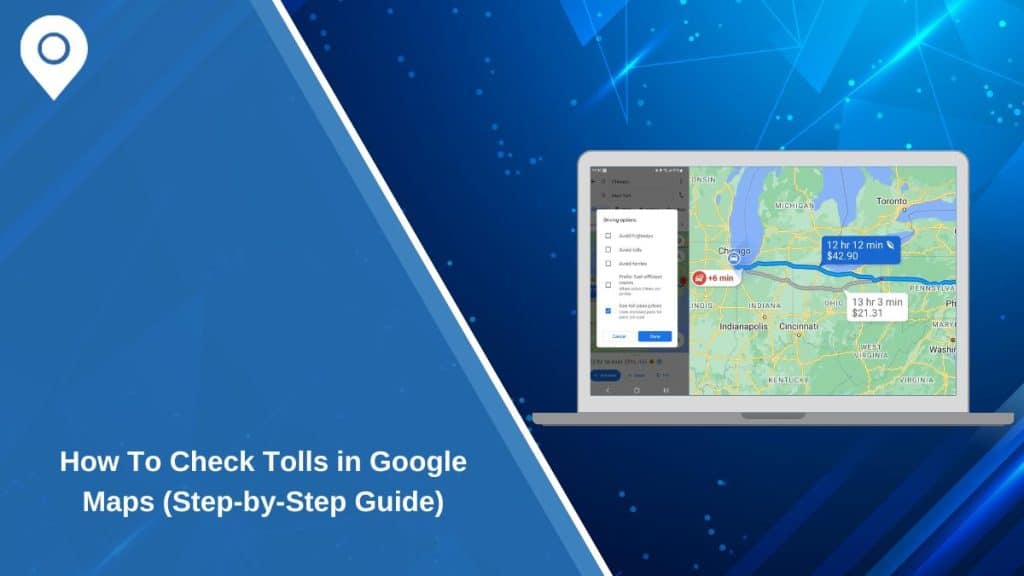
Planning a road trip or a daily commute often means considering toll roads. Some routes are faster but include toll charges. Others avoid tolls but take longer. Many drivers want to compare both before starting the trip.
Google Maps offers tools that help you see toll roads and, in some regions, even estimated toll prices. The steps are simple, but the options differ slightly between mobile and desktop.
Does Google Maps Show Tolls?
Yes, Google Maps can show toll roads on supported routes. When you enter a destination, the app may label a route with “Toll road” if that path includes paid highways.
In some countries, Google Maps also displays estimated toll prices before you start navigation. These estimates depend on data provided to Google by local authorities. If toll data is not available in your region, you may only see the toll road label without a price.
How To See Toll Roads On Google Maps (Mobile)
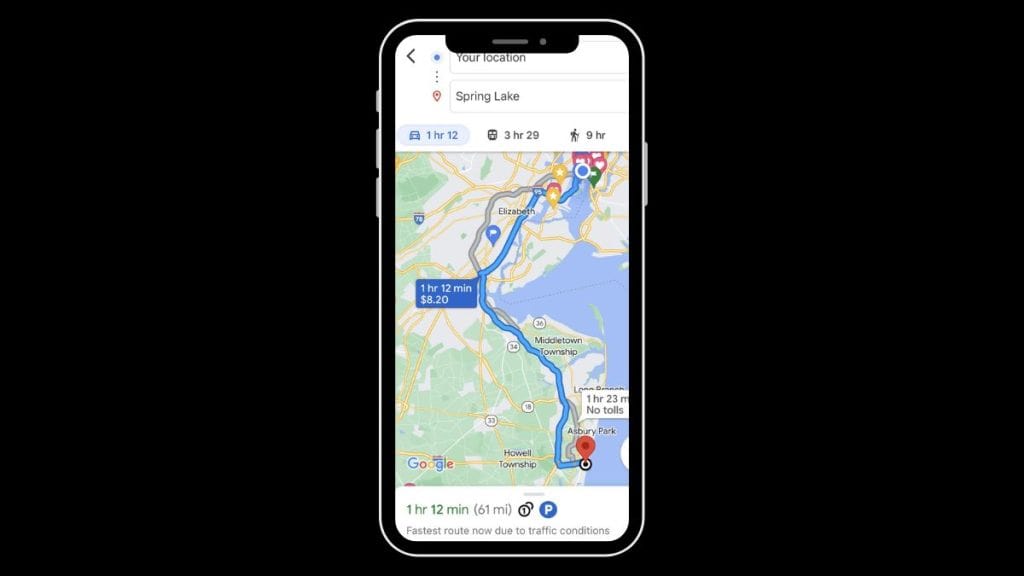
On Android or iOS, follow these steps:
-
Open Google Maps
-
Enter your destination
-
Tap Directions
-
Select your starting point
-
Review the route options shown
If a route includes tolls, it will usually say “Toll road” under the route time and distance. You may see multiple route choices, so compare them before selecting one.
How To See Toll Prices In Google Maps
In supported regions, toll estimates appear directly in the route preview. You will see the expected toll cost below the travel time. This works mostly for passenger vehicles and standard toll rates.
Keep in mind that these are estimates. Actual charges may vary depending on time of day, payment method, or local toll authority rules.
How To Avoid Toll Roads
If you prefer not to pay tolls, Google Maps allows you to disable them.
Steps:
-
Tap the three-dot menu after entering your route
-
Select Route options
-
Turn on Avoid tolls
-
Confirm and view updated routes
The map will now suggest routes without toll roads, even if they take longer.
Why Toll Prices May Not Appear
Sometimes you will not see toll costs listed. This does not mean the route is free.
Possible reasons:
-
Toll pricing data is not available in your country
-
The route is too short for a toll estimate
-
You are using offline mode
-
Google has not updated local toll information
-
The toll road charges vary by vehicle type
In these cases, you may need to check official toll authority websites for exact prices.
Is Google Maps Toll Estimate Accurate?
Toll estimates are generally close to real charges, but they are not guaranteed. The price may change based on traffic conditions or dynamic toll pricing systems.
It is better to treat Google Maps toll information as a guide, not a final bill. If the toll cost is critical for your budget, verify with official sources.
Toll vs Non-Toll Routes – What To Consider
Before choosing a route, consider:
-
Travel time difference
-
Fuel cost savings
-
Traffic congestion
-
Road conditions
-
Total distance
-
Personal driving preference
Sometimes paying a small toll saves significant time. Other times, avoiding tolls makes sense for short trips.
Final Thoughts
Google Maps makes it easy to see toll roads and, in many places, estimate toll costs before driving. Comparing routes helps you plan smarter and avoid surprises.
If this guide helped you understand how to check tolls, share it with other drivers. You can also comment about whether you prefer toll or non-toll routes.