Seeing error code 37 in Ashes of Creation can stop your login fast, and that gets annoying when you’ve already waited through queue or reached character select. In current player reports, this error is most often tied to a login or server connection problem, so it can block entry into the game world even when the launcher opens normally.
This guide explains what error code 37 means, where it usually appears, the common causes players report, the fixes worth trying, and a few ways to lower the chance of it happening again. Because official Intrepid documentation on code 37 is limited, I’ll clearly separate reported fixes from confirmed facts.
What Is Ashes of Creation Error Code 37?
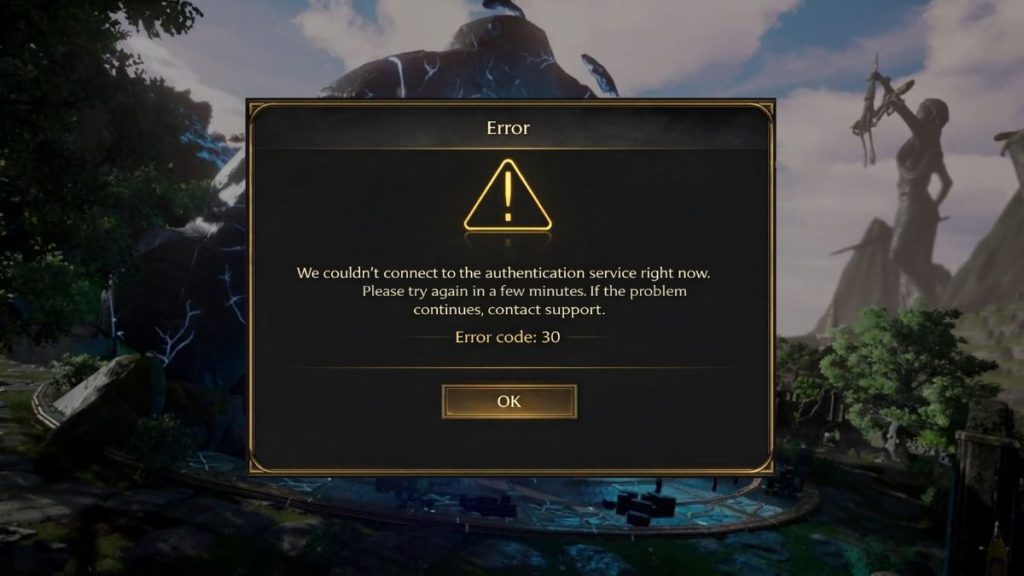
Ashes of Creation error code 37 is commonly described by players as a failed connection or login error. In plain words, the game or launcher cannot complete the move from login to the server session. That can happen before world entry, after queue, or while the character session is being checked. Based on the sources I found, it is better to treat code 37 as a connection-related problem rather than assume one exact technical cause.
Players usually report code 37 after queue, around character select, or just before entering the world server. Some community posts suggest it can appear during busy periods, and some players think a character session may stay stuck on the server for a while. That stuck-character idea appears in player discussions, not in a clear official support note I found, so it should be treated as a reported possibility, not a proven fact.
Common Causes of Ashes of Creation Error Code 37
This error can happen for several reasons, depending on server load, launcher state, and your PC setup. Below are the most common causes players and community guides mention.
- Temporary server or login instability can stop the game from finishing the connection to the world server.
- Queue congestion or heavy load in starting zones may trigger login failure during busy periods.
- A stuck character session may keep one character marked as already logged in. This is community-reported, not officially confirmed in the sources I found.
- The launcher may desync after login, which can break the handoff between account access and game entry.
- Firewall or antivirus settings may block launcher or server traffic. This appears in third-party troubleshooting, not in a clear official Intrepid code 37 article I found.
- VPN or proxy routing may interrupt or delay login traffic between the launcher and game server. This also comes from community-style troubleshooting rather than official confirmation.
- Corrupted game files or a Windows-side launcher dependency issue, such as Microsoft Edge WebView2, may be involved in some cases. I found this claim in third-party guidance, not official Intrepid support.
How to Fix Ashes of Creation Error Code 37?
In most cases, the best approach is to start with the easy checks first. If the issue comes from congestion or a stuck session, waiting or relaunching may help. If the issue is local, file repair, security checks, or Windows components may matter more.
Fix #1: Wait a few minutes and try again
If lots of players are logging in at the same time, error code 37 may have more to do with server load than with your PC. Community discussions suggest this can happen after long queue times or during crowded login periods. In that case, constant retries may not help much. Wait a few minutes, then try again. If players are reporting the same issue at the same time, the problem may clear once server load drops.
Fix #2: Restart the launcher and sign in again
A full launcher restart can clear a broken login state between your account session and the game server. Sometimes the launcher opens, but the session it passes to the game is stale or incomplete. Closing the launcher fully, then reopening it and signing in again, is a simple test. It is not fancy. Still, players often try it first because it can reset the connection without changing deeper system settings.
Fix #3: Restart your PC
A PC restart can reset network services, background processes, launcher state, and temporary session problems all at once. That matters when the issue comes from Windows networking, a stuck launcher process, or security software running in the background.
It is one of the easiest fixes to try, and it can clear issues that do not show an obvious warning message. Community troubleshooting around code 37 includes restart-based workarounds.
Fix #4: Verify the game files
Corrupted or incomplete game files can cause strange login and launcher errors. File verification is a practical step because it checks whether the installed data still matches the game’s expected files.
Follow the steps below to easily verify the game files.
- Open the launcher or platform you use for Ashes of Creation.
- Find the game settings or install options.
- Look for a repair, verify, or file check option.
- Start the verification process.
- Let the launcher scan and repair any broken files.
- Restart the launcher after the check finishes.
- Log in again and test whether error code 37 is gone.
I found verification mentioned in community and third-party troubleshooting, but not in a clear official Intrepid code 37 support page.
Fix #5: Try another character if one seems stuck
Some players report that one character may appear stuck while another can log in, which suggests a session problem tied to character state rather than the full account. This is a player-reported workaround, not an officially confirmed cause. Still, if you have another character available, it is a quick test. If a second character works and the first one does not, that can help narrow the issue before you contact support.
Fix #6: Check antivirus, firewall, VPN, and proxy settings
Security tools and connection-routing apps can block or slow the traffic the launcher needs. That includes antivirus filters, strict firewall rules, VPN apps, and proxy settings. Not every player uses these tools, sure, but when they are active they can interfere with login.
Try these simple steps to quickly check security and connection blockers.
- Close any VPN or proxy app before launching the game.
- Open your firewall settings and make sure the launcher is not blocked.
- Check your antivirus quarantine or app control section.
- Temporarily allow the launcher and game through your security software.
- Save the changes and close the settings window.
- Restart the launcher.
- Try logging into Ashes of Creation again.
This fix is based on third-party and community troubleshooting, not a clear official Intrepid code 37 article I found.
Fix #7: Update Windows and repair Microsoft Edge WebView2
Some third-party guidance links error code 37 to Windows-side launcher components, including Microsoft Edge WebView2. I could not verify this in official Intrepid documentation, so treat it as a possible fix, not a confirmed root cause. Still, if your launcher depends on web-based sign-in components, an outdated Windows build or broken WebView2 install could affect login.
The following steps will show you how to update Windows and repair WebView2 properly.
- Open the Start menu and go to Settings.
- Open Windows Update and check for updates.
- Install any available update and restart your PC.
- Search Windows for Installed apps.
- Look for Microsoft Edge WebView2 Runtime.
- If it appears, choose Modify or Repair if that option is available.
- Restart your PC, then open the launcher again.
This recommendation comes from third-party troubleshooting, not from an official code 37 help article I found.
Fix #8: Contact support if the error keeps coming back
If you keep seeing error code 37 after retrying, relaunching, verifying files, and checking security software, it may be time to contact support. This matters more if only one character fails, if the issue returns every login attempt, or if the error appears after queue again and again.
When you contact support, include the exact error code, your launcher state, whether other characters work, and the fixes you already tried. That gives Intrepid more useful details and may speed up the next step.
Prevention Tips to Avoid Ashes of Creation Error Code 37 in Future
Prevention will not stop every server-side issue, but it can lower the chance of local login problems and repeated launcher trouble. These simple habits help keep the game and launcher in a cleaner state.
- Keep the launcher fully updated before logging in.
- Install Windows updates so login components and network services stay current.
- Verify files after major patches or after a failed update.
- Avoid VPN use while logging in unless you truly need it.
- Whitelist the launcher in your firewall and antivirus if those tools are strict.
- Fully exit the launcher before repeated login attempts instead of stacking retries.
- When possible, avoid peak login spikes right after major events or high-traffic periods.
Conclusion
To summarize, Ashes of Creation error code 37 is most often treated by players as a login or server connection problem. It can show up after queue, during character select, or before entering the world server. Based on the sources I found, the most supported possibilities are server instability, queue congestion, launcher session problems, and in some cases local PC-side blockers such as security tools or broken files. Some other fixes, like trying another character or repairing WebView2, come from community and third-party reports rather than official Intrepid support.
Start with the simple fixes first – wait, relaunch, restart, and verify files. Then move to security settings and Windows-side checks if the problem stays. If nothing changes, contact support with the exact error code and your test results.
And if this article helped, share it with another player or leave a comment with the fix that worked for you.