Few things are more frustrating than tapping an app icon and watching it crash, freeze, or refuse to launch entirely. Whether you are using a smartphone, tablet, or desktop computer, app crashes and start-up errors can disrupt productivity and test your patience. Fortunately, most of these problems stem from a small set of common causes—and they are surprisingly easy to fix once you know where to look.
TL;DR: Most app crashes and start-up errors are caused by outdated software, corrupted cache or data, incompatible system updates, or insufficient system resources. Start by updating the app and your device, then clear cache or reinstall if needed. Check system permissions and storage, and finally use built-in diagnostic tools to pinpoint deeper issues. Following these four structured troubleshooting steps resolves the majority of app-related problems.
1. Update the App and Your Device
One of the most common reasons apps crash during startup is outdated software. Developers regularly release updates to fix bugs, patch security vulnerabilities, and improve compatibility with operating systems.
If your app hasn’t been updated in months—or if your device recently installed a major system update—the mismatch can cause instability.

What to Do:
- Update the app via the App Store, Google Play Store, or official desktop source.
- Restart your device after updating to ensure changes take effect.
- Check for operating system updates and install any pending patches.
Why this works: Apps are designed to run on specific system versions. When your OS changes—especially after major updates—older app versions may rely on outdated frameworks, resulting in crashes on launch.
Pro Tip: Enable automatic updates for both apps and system software to prevent future conflicts.
2. Clear Cache, Temporary Files, or Reinstall the App
If updates don’t fix the issue, corrupted data may be the culprit. Apps continuously store temporary files (cache) to load faster. However, over time, these files can become corrupted and prevent the app from launching correctly.
This is especially common after forced shutdowns, sudden power loss, or interrupted updates.
Step-by-Step Fix:
- On mobile devices: Navigate to Settings → Apps → Select the app → Clear Cache.
- On desktops: Clear temporary files from system storage or the app’s settings menu.
- If problems persist: Uninstall the app completely and reinstall a fresh copy.
Important: Clearing cache typically does not delete personal data, but uninstalling might. Back up important information before removing the app.

Why this works: Corrupted temporary files can interfere with startup scripts. A clean reinstall replaces damaged files and restores default configurations.
This single step resolves a large percentage of unexplained crashes.
3. Check Storage, Memory, and App Permissions
Apps require a minimum amount of free storage space and available RAM to launch properly. When your device is overloaded with files or background processes, apps may freeze or crash instantly.
Additionally, missing permissions—such as access to storage, camera, or network—can prevent apps from initializing correctly.
A. Free Up Storage
- Delete unused apps.
- Remove duplicate photos or large video files.
- Empty your recycle bin or trash folder.
- Move content to cloud storage.
Rule of thumb: Keep at least 10–20% of your device storage free for optimal performance.
B. Close Background Apps
Too many active apps can exhaust system memory. Use your device’s task manager or app switcher to close unnecessary programs.
C. Verify App Permissions
- Open Settings → Apps → Permissions.
- Ensure required access (camera, storage, microphone, etc.) is granted.
- Toggle permissions off and back on if needed.
Why this works: When apps lack required resources or authorizations, startup processes can time out or fail entirely.
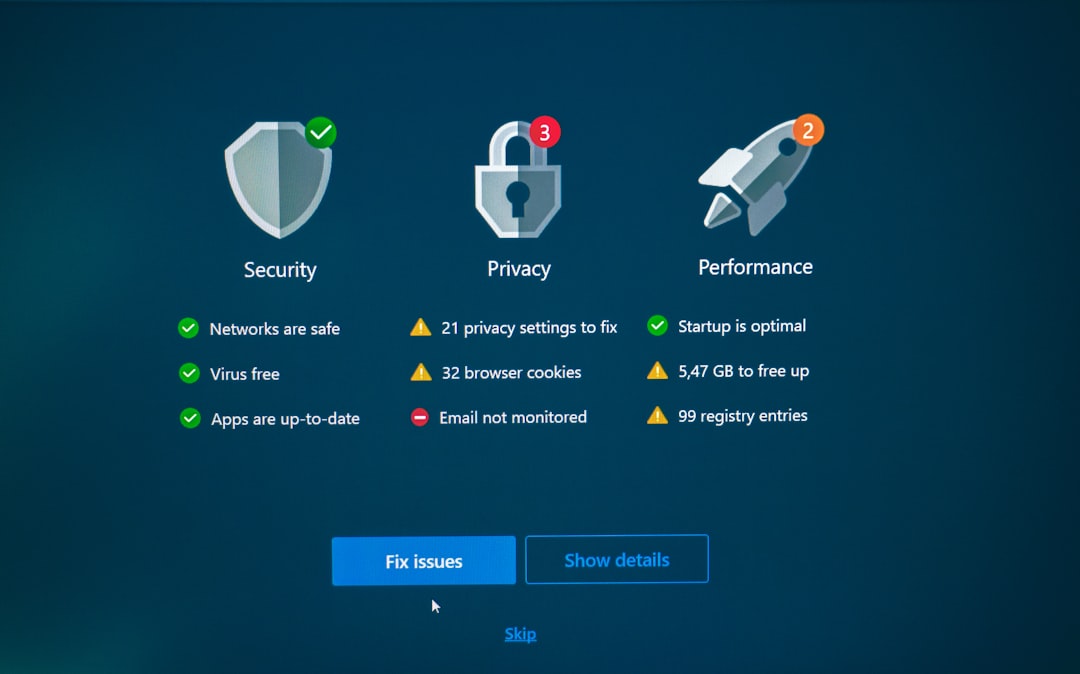
4. Use Diagnostic Tools and Safe Mode
If the app continues to crash after updates, cache clearing, and resource checks, the issue may stem from deeper system conflicts. Built-in diagnostic tools can help you pinpoint the root cause.
Common Diagnostic Tools
| Tool | Platform | Primary Function | Best Used For |
|---|---|---|---|
| Task Manager | Windows | Monitor CPU, memory, and processes | Identifying resource-heavy apps |
| Activity Monitor | Mac | Track system performance | Detecting crashes and spikes |
| Event Viewer | Windows | View system and app error logs | Finding detailed crash reports |
| Disk Utility | Mac | Repair disk permissions and errors | Fixing startup conflicts |
| Safe Mode | Windows, Mac, Android | Launch system with minimal drivers | Identifying third-party conflicts |
How Safe Mode Helps
Booting into Safe Mode disables non-essential apps and services. If the problematic app runs normally in Safe Mode, you likely have a third-party software conflict.
Steps (Generalized):
- Restart your device.
- Hold the designated Safe Mode key combination during boot.
- Test the problematic app.
If it works in Safe Mode:
- Remove recently installed apps.
- Disable startup programs one by one.
- Scan for malware using trusted security software.
Why this works: Many crashes are caused by conflicting background utilities—antivirus programs, system cleaners, or unofficial plugins.
Bonus: When to Contact Support
If none of the above solutions resolve the issue, consider:
- Checking the app developer’s official support site.
- Reviewing recent app store reviews to see if others report the same issue.
- Submitting a crash report.
- Rolling back to a previous app version (if available).
Persistent startup errors may stem from server outages or widespread compatibility issues beyond your control.
Common Causes of App Crashes at a Glance
- Outdated software
- Corrupted cache or data files
- Insufficient storage or RAM
- Missing permissions
- Third-party software conflicts
- Malware or disk errors
Understanding these common triggers makes troubleshooting faster and more logical.
Preventing Future App Crash Issues
While troubleshooting is helpful, prevention is even better. Adopting a few simple habits can significantly reduce future app failures.
- Restart your device weekly to refresh system memory.
- Avoid downloading apps from unofficial sources.
- Keep at least 20% storage free.
- Remove apps you no longer use.
- Install updates regularly.
Think of your device like a car: regular maintenance keeps everything running smoothly.
Final Thoughts
App crashes and startup errors may seem complex, but most problems can be resolved with a structured approach. Start simple—update everything. Move on to clearing cache and reinstalling if needed. Check your storage, memory, and permissions. Finally, use diagnostic tools and Safe Mode to isolate deeper issues.
By following these four core troubleshooting steps, you transform frustration into empowerment. Instead of guessing, you’ll know exactly where to look—and how to fix it.
Technology isn’t perfect, but with the right strategy, you can keep your apps running smoothly and your productivity uninterrupted.